Sign in
At Resident Login, enter your registered mobile number and sign in with a password or OTP. Residents and tenants use the same portal.
Separate, practical guides for residents and tenants. See where every service is, what it does and how to use it, alongside real app screenshots.
Screenshots were captured directly from the app using a demo account. Names and bills are fictional; published Society Library documents are original society records.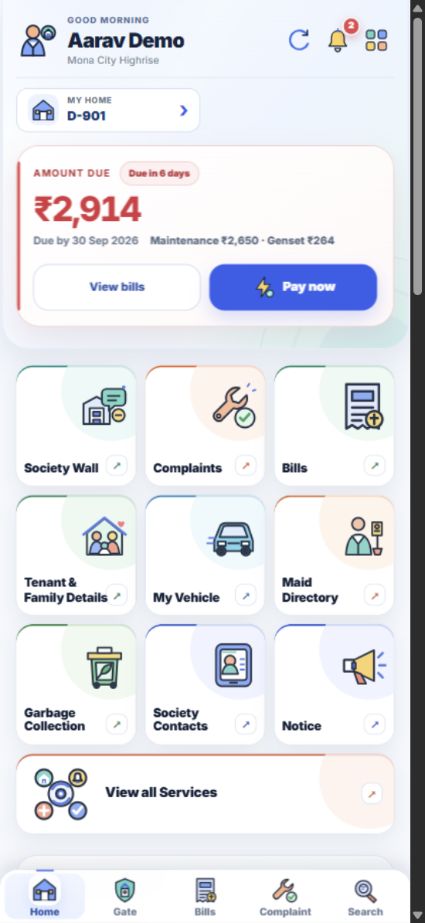
No topic matched. Try another term or a button name from the app.
The app’s buttons are in English. This guide uses their exact names so you can follow each path on your screen.
At Resident Login, enter your registered mobile number and sign in with a password or OTP. Residents and tenants use the same portal.
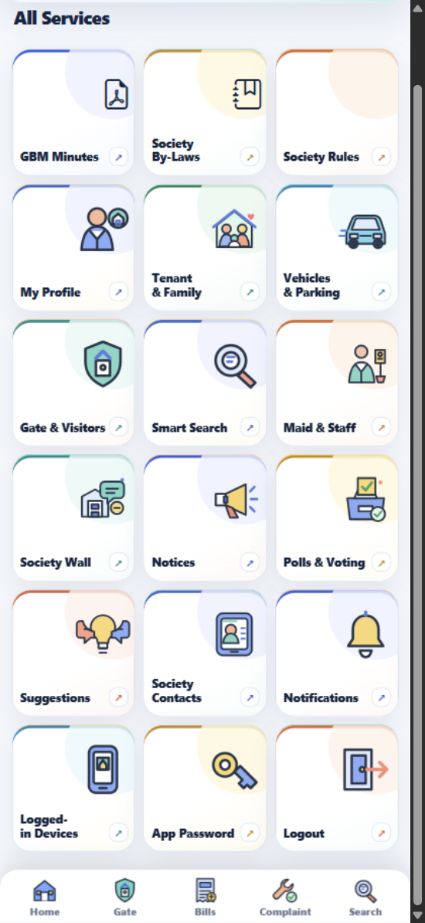
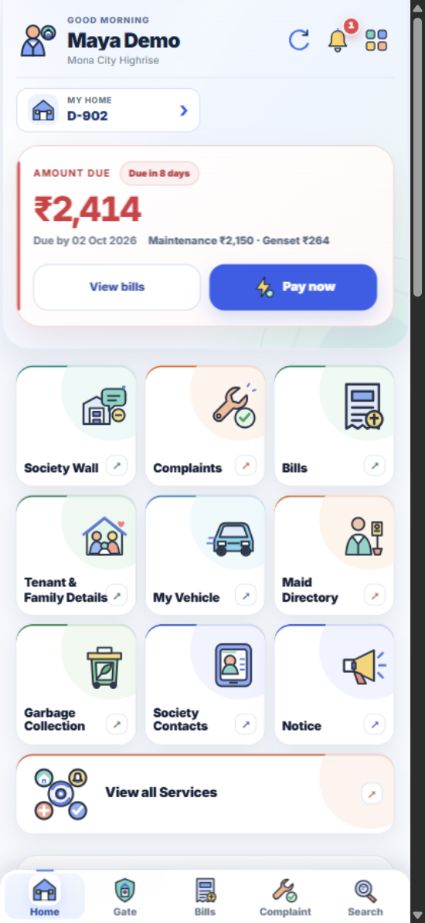
Home has shortcuts for everyday tasks. Tap the four squares at the top right to open All Services.
Home, Gate, Bills, Complaint and Search are available at the bottom of the main screens.
Short mobile recordings captured from a fictional demo account. No payment, approval or document was submitted while recording.
The path from Home to a waiting request and previous visits.
Where to find both bill tabs and available receipts.
The path from a tenant record to the document upload form.
Manage your flat and household, use services and read the society’s published information. Every topic includes steps and a matching app screenshot.
Use your registered mobile number to sign in with a password or OTP. Home brings your flat, alerts and everyday services together.
Send a tenant request from the app with their contact details and occupancy dates.
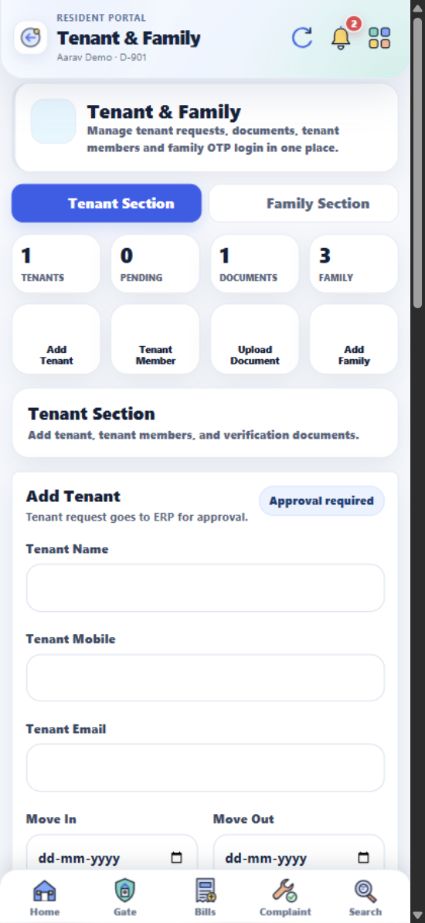
Keep the tenant’s household details, agreement, police verification and ID proof with the tenant record.
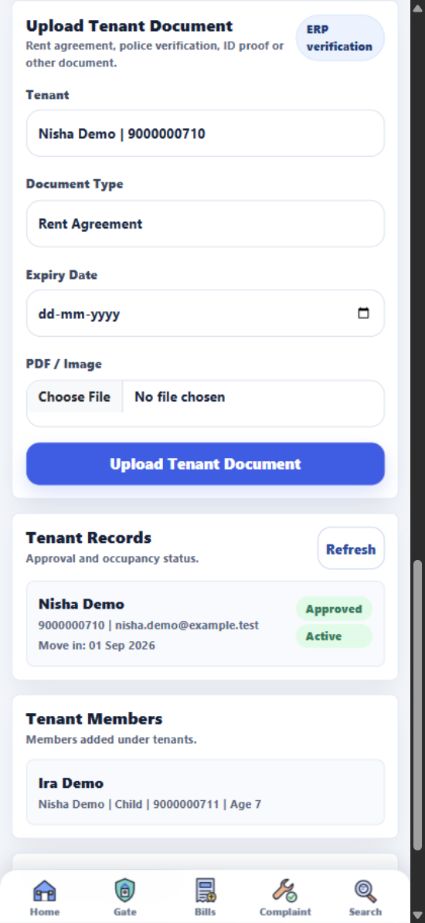
Keep your flat’s household record current with each member’s name, relationship and mobile number.
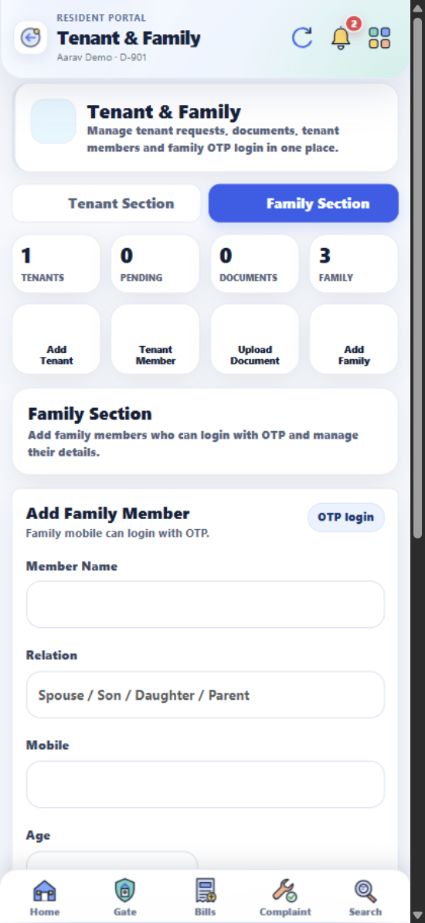
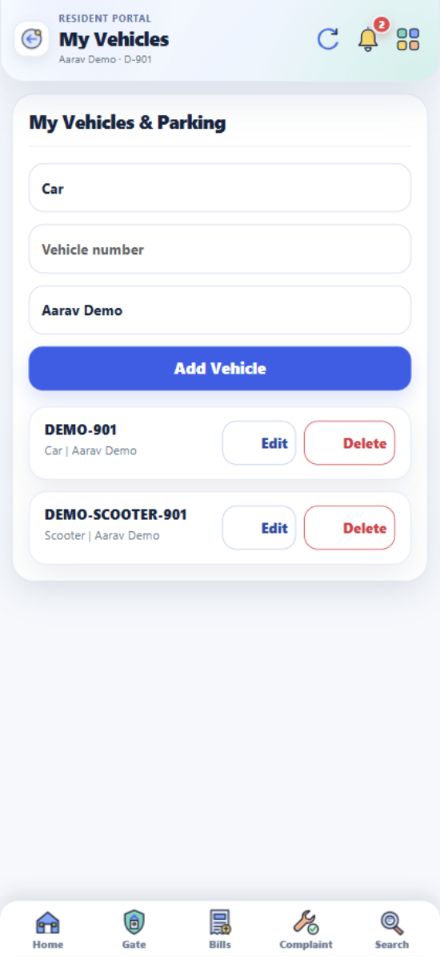
Link your car, bike or scooter to your flat so it can be identified in gate and society records.
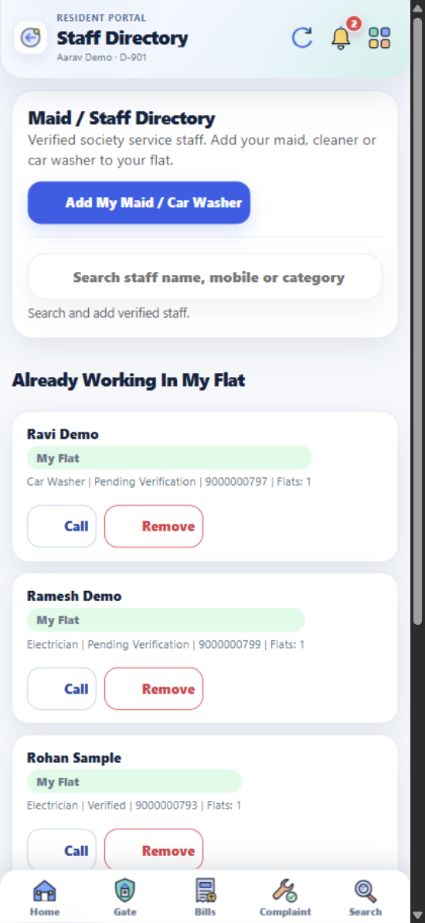
Search the staff directory and request to link a worker to your flat.
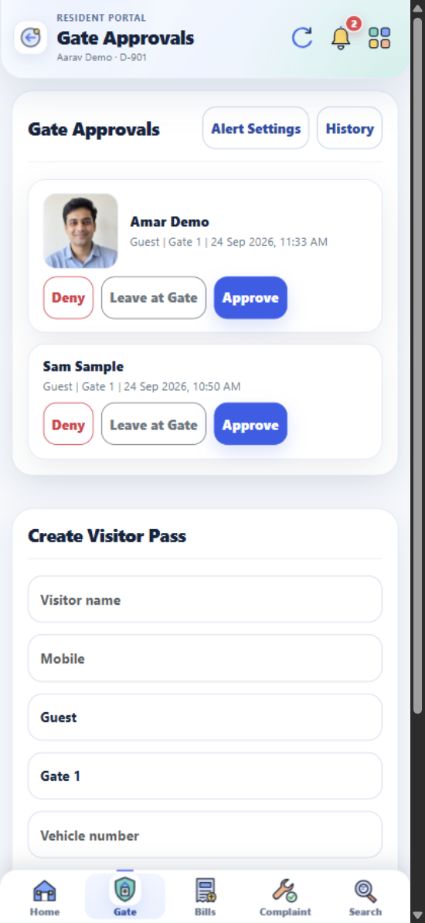
Check a visitor’s name, type, gate and photo when available before you respond.
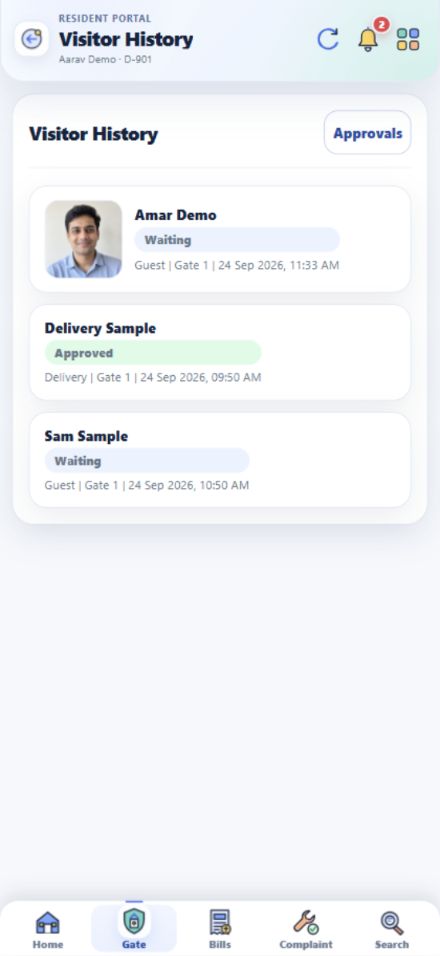
See earlier gate requests and manage available visitor notifications.
Find your flat’s invoices, outstanding amounts, payment history and available receipts in Bills.
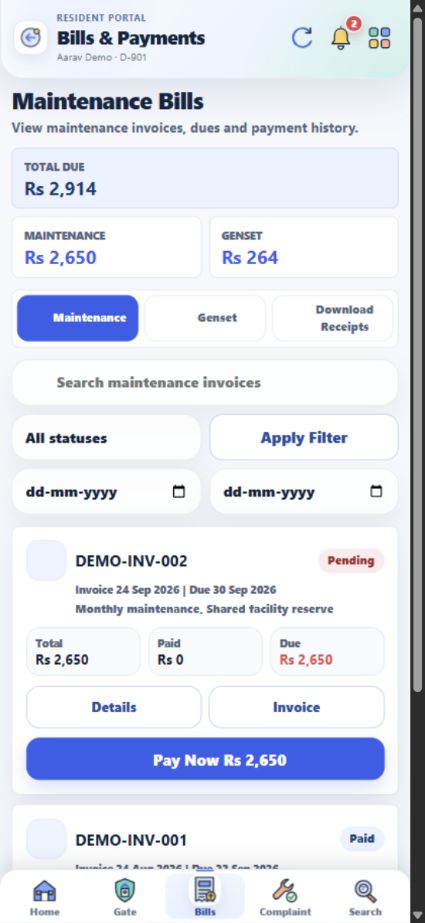
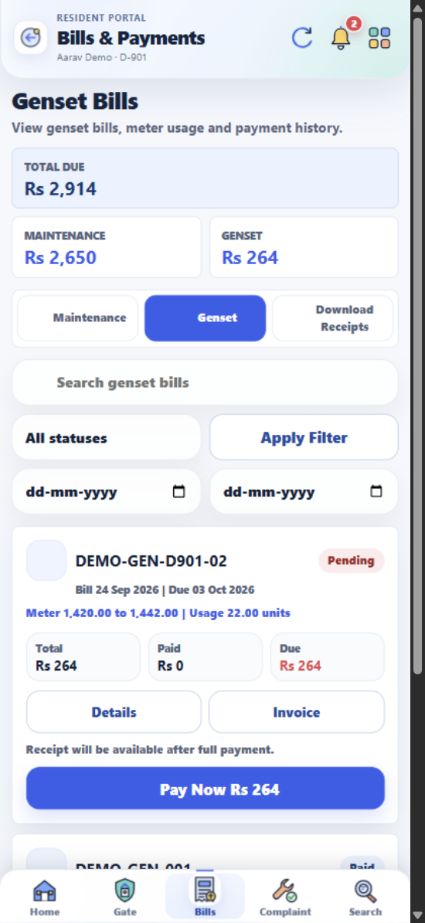
Genset usage and invoices are shown on their own tab, separate from maintenance.
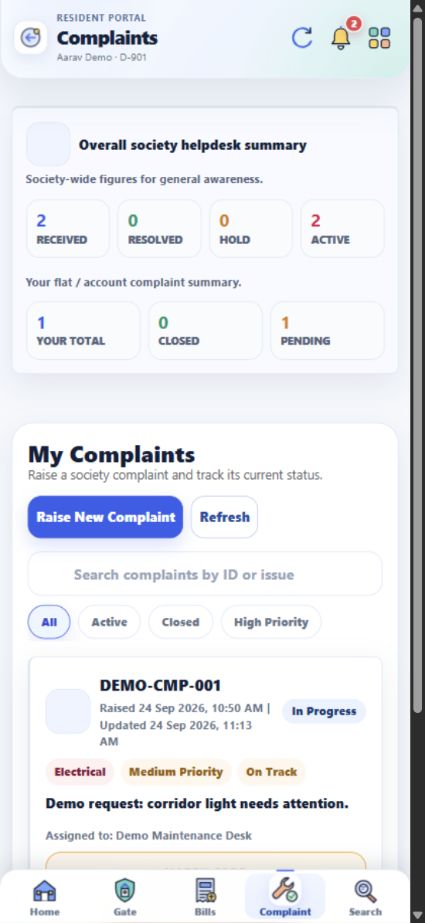
Report maintenance, cleaning, security or common-area issues and follow their progress.
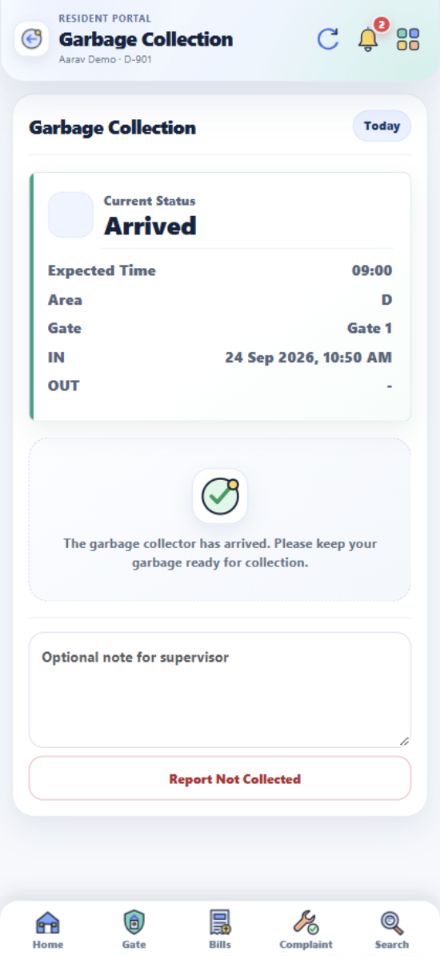
See today’s collection status, expected time, gate and in/out activity.
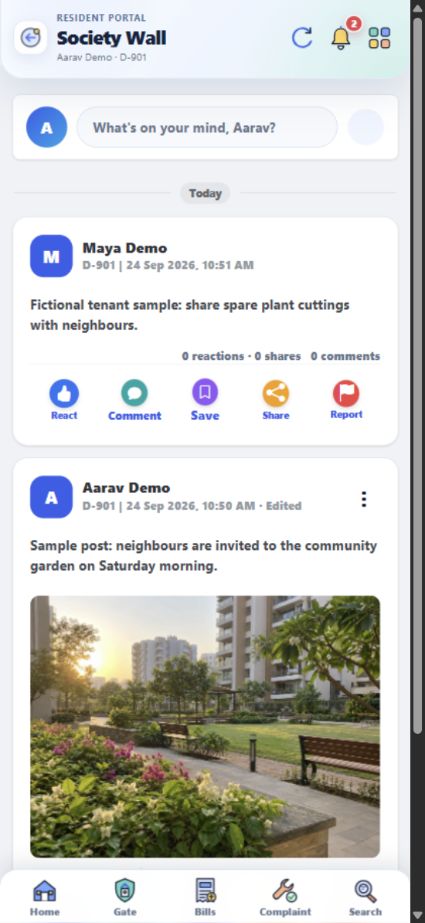
Read neighbourhood updates, share useful posts and join community discussions.
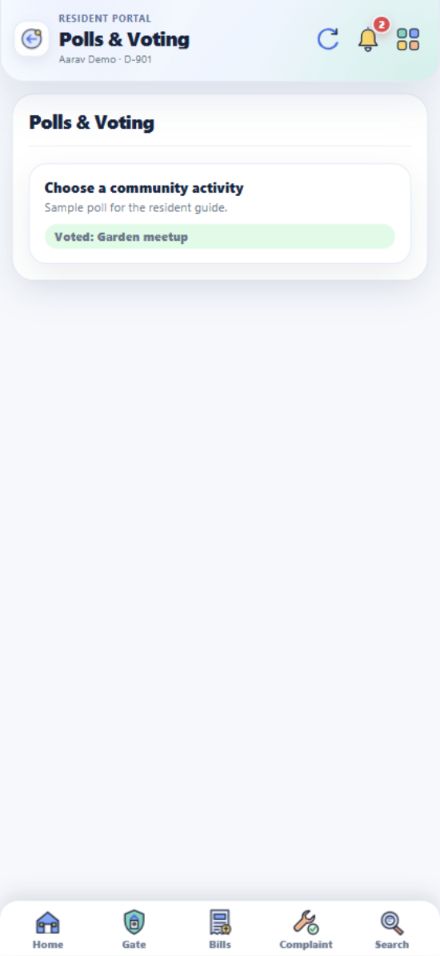
Read the choices in an active poll, submit your choice and see a recorded vote.
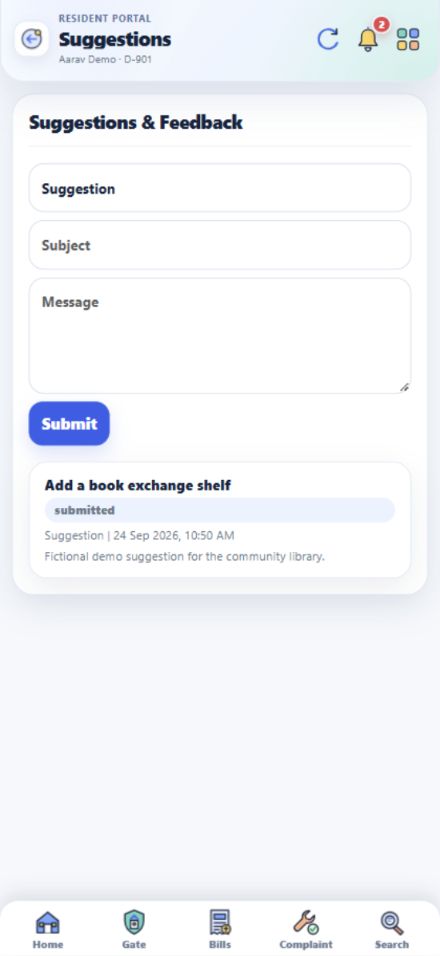
Share an idea for a service, general feedback or an issue with the app.
Society Library gives you access to documents published by the society.
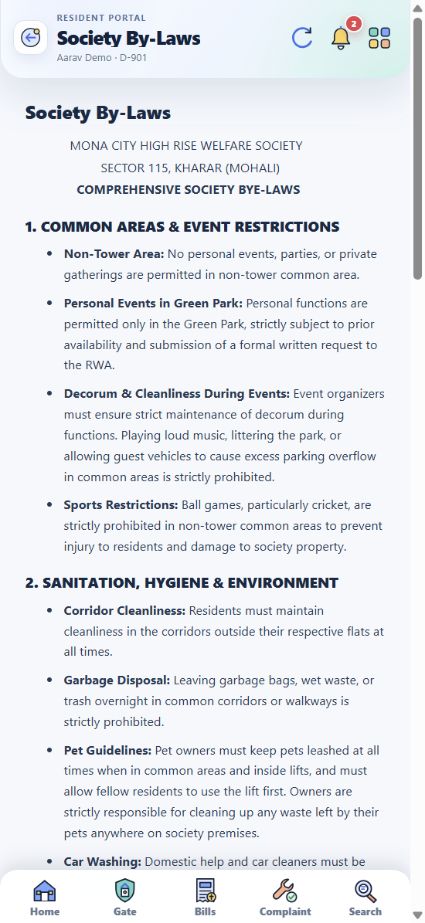
Read the original sections of the society’s published By-Laws in the app.
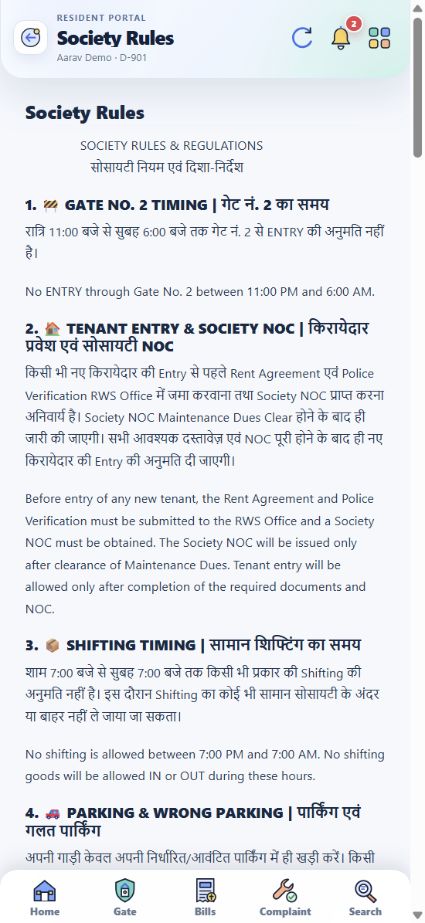
Find the society’s published Hindi and English rules in this section.
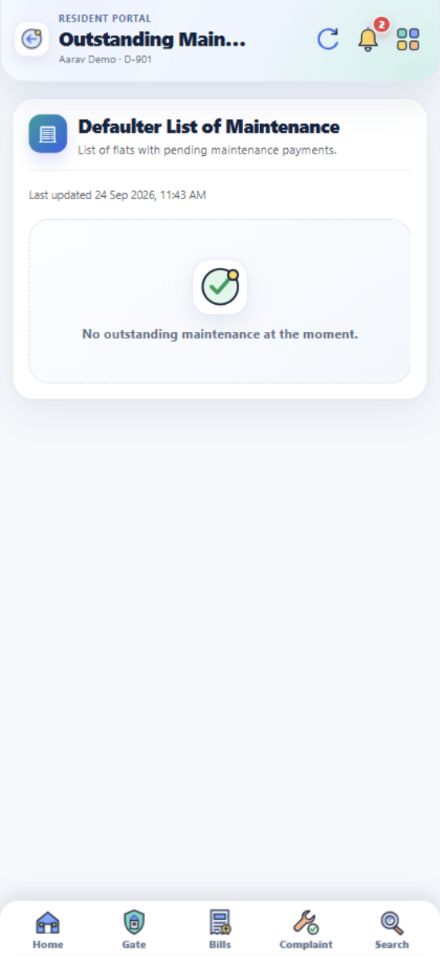
Home includes a shortcut to the published maintenance outstanding list.
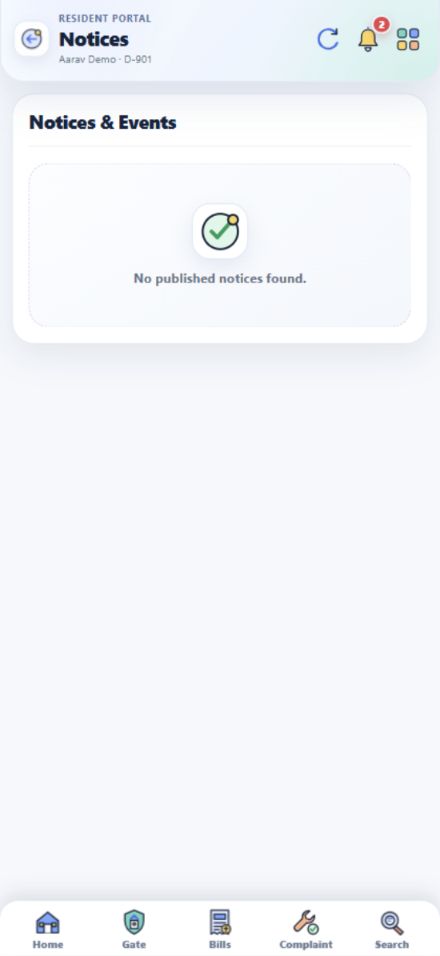
Stay informed about official announcements, events and useful contacts.
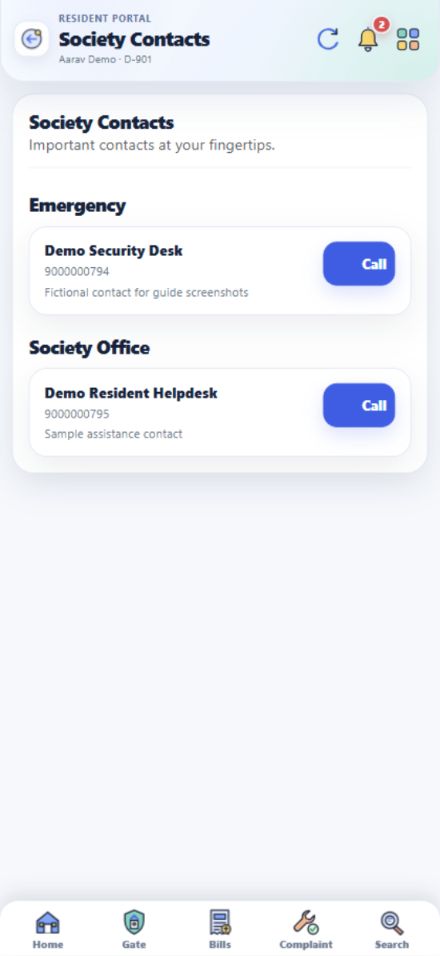
Society Contacts lists the published office and emergency numbers.
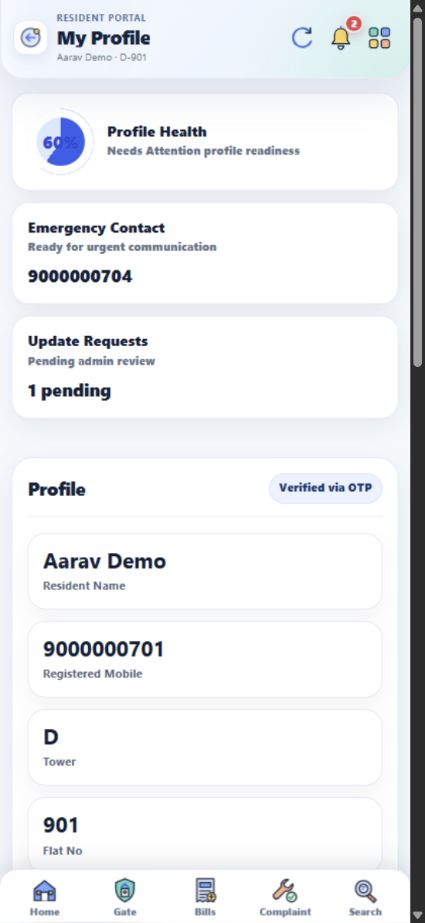
Check your name, registered mobile number, flat and emergency contact in one place.
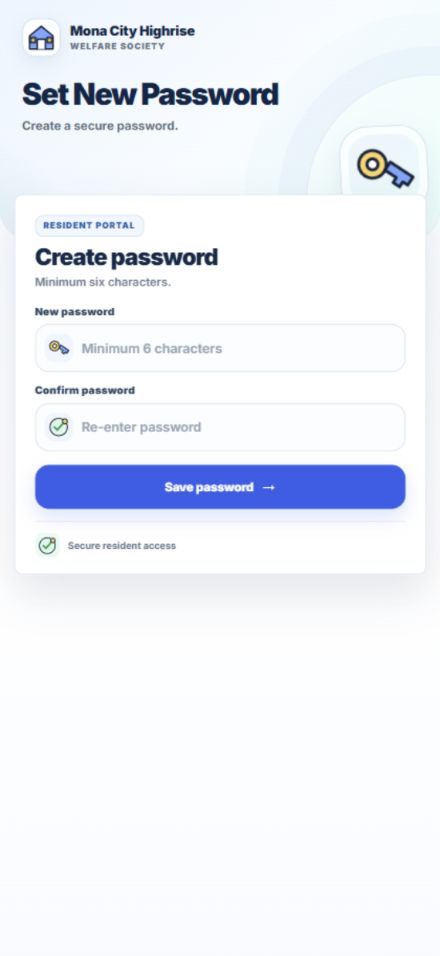
Use App Password to create a password for sign-in or replace your existing one.
Sign out when you finish using a shared phone or browser.
Tenants can sign in with their registered mobile number and use services for their linked flat. Available screens and records depend on society approval and account data.
An approved tenant signs in through the same portal with their registered mobile number and sees services for the linked flat.
Tenant & Family shows the linked flat’s tenant records, members and documents.
Visitor requests for your linked flat appear under Gate.
Available invoices and payment information for the flat are visible from a tenant login.
Link a vehicle you use to the flat’s record.
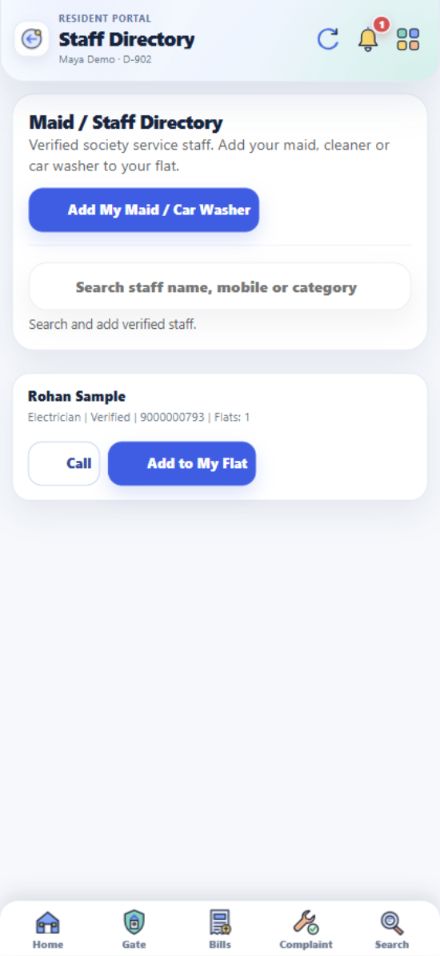
Find a verified worker, link them to the flat and check the daily collection status.
Tenants can follow day-to-day issues for their flat and read community updates.
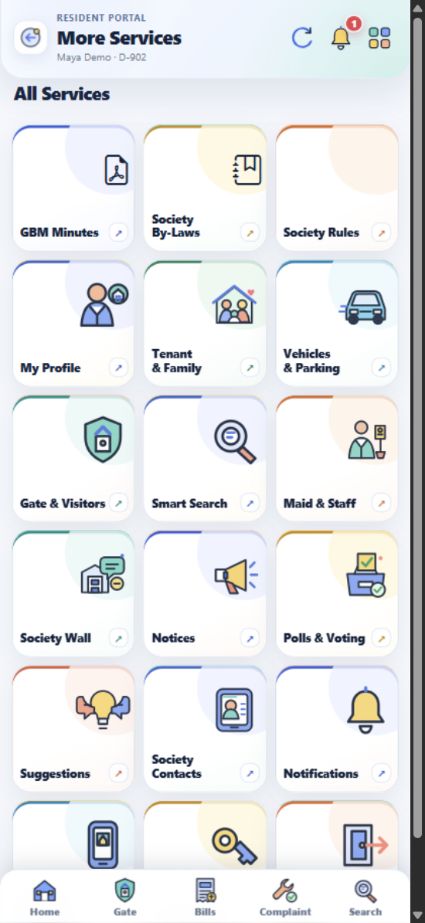
More Services gives access to the linked flat’s profile and your login settings. Your tenant details are under Tenant & Family.
Browse six sections covering the app’s main services. Each answer links to detailed steps and a matching screenshot.
Enter your registered mobile number on Resident Login. Sign in with a password or Login with OTP. Home then shows your linked flat and key shortcuts.
View detailed steps ↗Open My Home on Home. If multiple flats are linked to your account, use Switch Home to select the right one.
View detailed steps ↗Tap the bell at the top of Home or open All Services → Notifications for visitor and other account alerts.
View detailed steps ↗Tap Search in the bottom navigation or open All Services → Smart Search. Enter at least two characters to find bills, receipts, complaints, notices, staff and members.
View detailed steps ↗Review your details under All Services → My Profile. Enter changes in Update Profile, tap Save Profile and check the status under Profile Update Requests.
View detailed steps ↗Open All Services → App Password, enter and confirm a new password, then tap Save password. Use the new password with your registered mobile next time.
View detailed steps ↗Open All Services → Logged-in Devices for login history. Tap All Services → Logout when finished, especially on a shared phone.
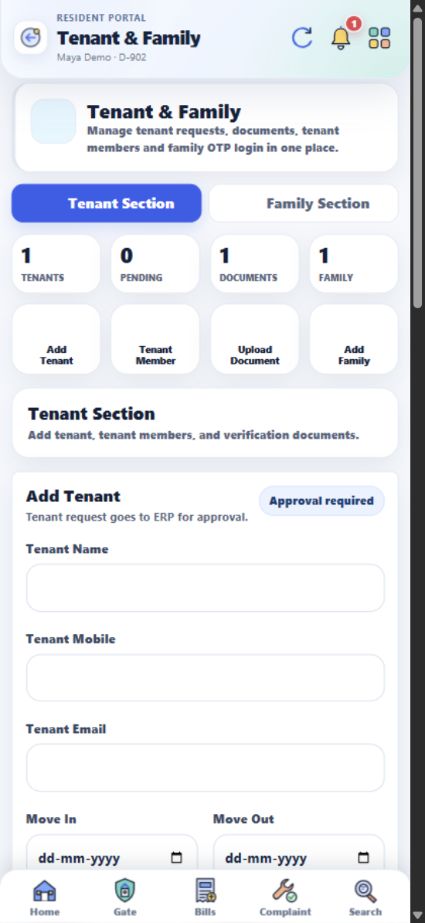
View detailed steps ↗Open Home → Tenant & Family Details → Tenant Section → Add Tenant. Enter the name, mobile number and occupancy dates, then check approval in Tenant Records.
View detailed steps ↗The society office must approve the tenant request. Check approval and active status in Tenant Records before the tenant signs in with their registered mobile.
View detailed steps ↗Open Tenant Member in Tenant Section, choose the tenant and save the member’s name, relationship and other details. The entry appears under Tenant Members.
View detailed steps ↗In Tenant Section → Upload Document, choose the tenant and Document Type. Attach a PDF or image, then check verification status under Tenant Documents.
View detailed steps ↗Open Tenant & Family Details → Family Section → Add Family Member. Enter the name, relationship and mobile number; select Emergency when applicable. Use Family Details to edit or delete an entry.
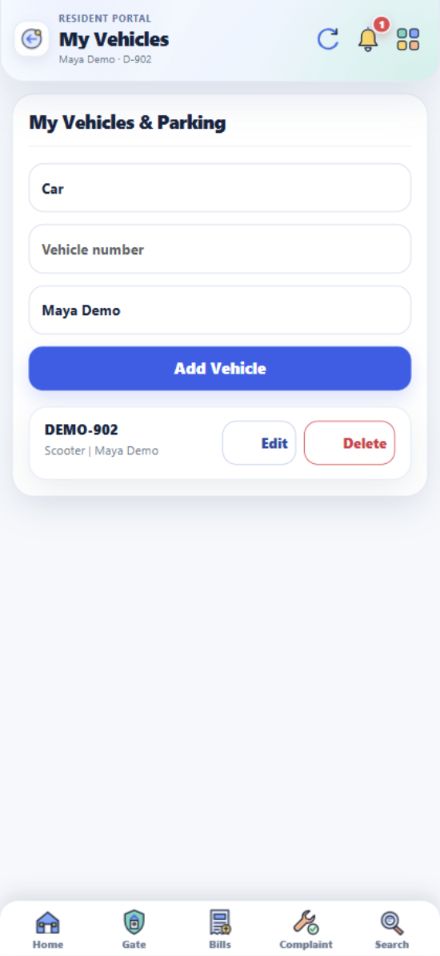
View detailed steps ↗Open Home → My Vehicle, enter the type, registration number and owner name, then tap Add Vehicle. Use Edit or Delete in the vehicle list.
View detailed steps ↗My Vehicle shows your vehicle record. There is no separate parking slot or sticker request button shown; ask the office through Society Contacts.
View detailed steps ↗Search Maid Directory and choose Add to My Flat for an existing worker. For someone new, submit their details through Add My Maid / Car Washer and check verification status.
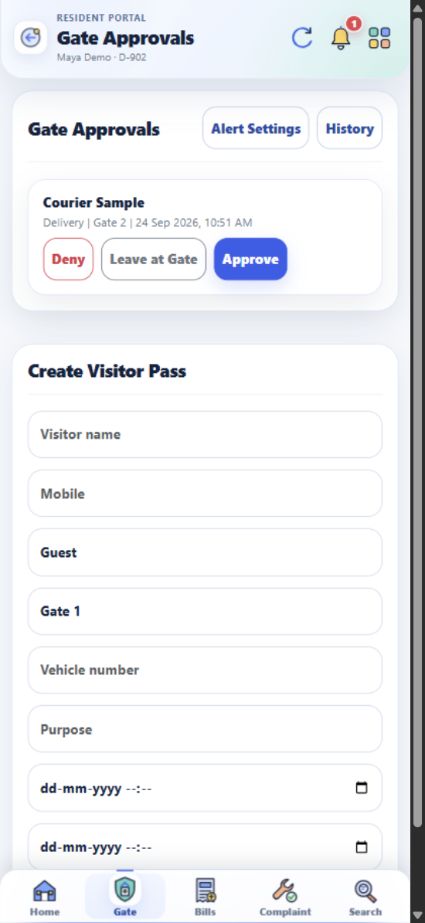
View detailed steps ↗Open Gate and check the waiting request. Choose Approve for an expected visitor, Deny to refuse entry or Leave at Gate for an item to remain there.
View detailed steps ↗Under Gate → Create Visitor Pass, enter the visitor name, type, gate and valid time. Your passes appear under My Visitor Passes.
View detailed steps ↗A photo appears only when gate staff attached it to the request. Check the name, visitor type and gate details before responding.
View detailed steps ↗Open History in Gate Approvals for past visits. Use Alert Settings for available household visitor notification settings.
View detailed steps ↗Open Home → Garbage Collection for today’s status and expected time. If collection was missed, add a note and tap Report Not Collected.
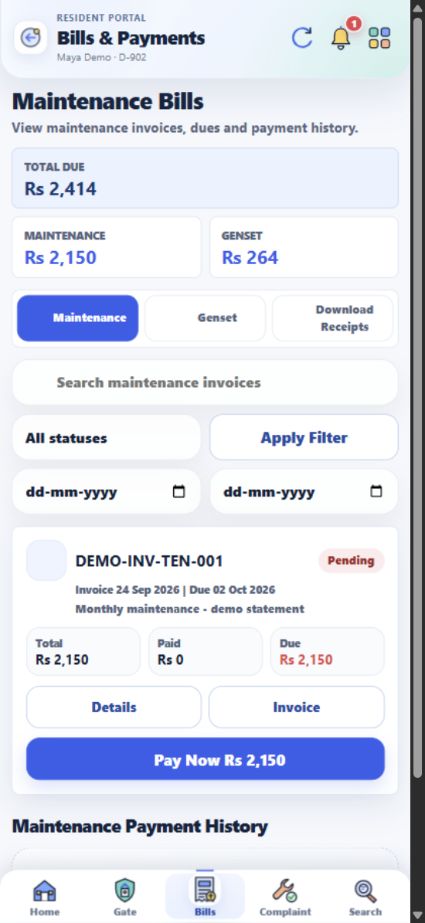
View detailed steps ↗Open Bills → Maintenance. Check the invoice due date and amount; tap Details for the charge breakdown and payment summary.
View detailed steps ↗Open Bills → Genset for Meter & Usage, bill amount and Payment Summary. Earlier payments appear under Genset Payment History.
View detailed steps ↗Bills → Download Receipts shows receipts for fully paid society bills. A pending or partially paid bill will not have a receipt there yet.
View detailed steps ↗Pay Now opens the official payment flow. After payment, check the bill status and available receipt under Bills.
View detailed steps ↗Open Complaint below, choose a category and submit the issue details. Check the ticket and resolution updates with All, Active and Closed filters.
View detailed steps ↗Use Complaint for an issue that needs action and follow-up. Open All Services → Suggestions for an idea, general suggestion or app feedback.
View detailed steps ↗Open Home → Society Wall. Create a post with What’s on your mind?; you can React, Comment, Save or Share other posts.
View detailed steps ↗Open All Services → Polls & Voting, choose an option in an active poll and submit your vote. Your recorded choice appears there afterward.
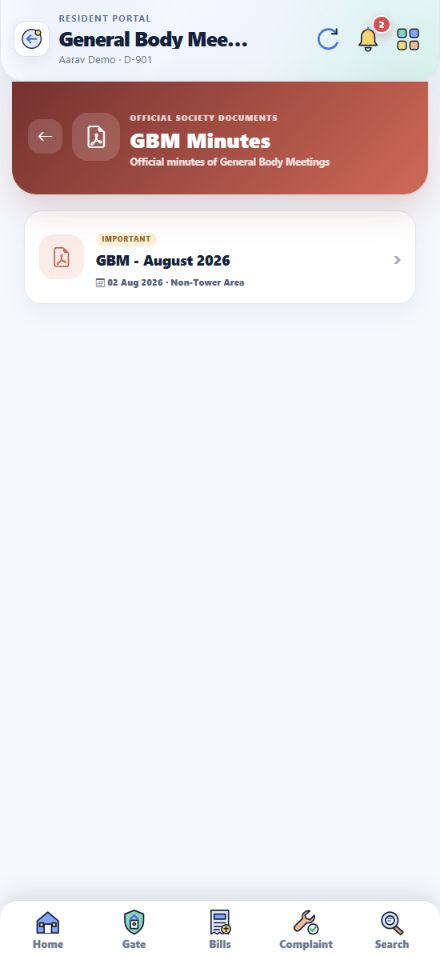
View detailed steps ↗Open Society Library → GBM Minutes on Home. Check the meeting date and venue, and open the PDF from the meeting record when available.
View detailed steps ↗Open Society Library → By-Laws for published sections. Record a reading acknowledgement if one is shown after you read them.
View detailed steps ↗Open Society Library → Society Rules for published rules about gate timings, tenant entry, parking and other topics.
View detailed steps ↗Open Defaulter List of Maintenance under At a glance on Home. Use Bills for the exact invoices and dues for your own flat.
View detailed steps ↗Open Home → Notice for published society notices and events. Account alerts appear under the bell icon.
View detailed steps ↗Open Home → Society Contacts for office and emergency sections. Tap Call when a number is available.
View detailed steps ↗An approved tenant signs in at Resident Login with their registered mobile number and a password or OTP. Home shows the linked flat and available services.
View detailed steps ↗Open Home → Tenant & Family Details → Tenant Section for your record, occupancy status, members and documents. Use available forms to send member or document details.
View detailed steps ↗Open Gate for a waiting request at the linked flat and choose Approve, Deny or Leave at Gate. Use Create Visitor Pass for an expected guest.
View detailed steps ↗Open Bills and switch between Maintenance and Genset. Use Details for bill breakdowns and Download Receipts for available receipts.
View detailed steps ↗Open Home → My Vehicle and enter its type, registration number and owner name. Ask the office through Society Contacts about parking allocation or stickers.
View detailed steps ↗Search Maid Directory or link a worker to your flat. Open Garbage Collection for today’s collector status.
View detailed steps ↗Raise an issue under Complaint and browse available updates in Society Wall, Polls & Voting, Suggestions, Notices and GBM Minutes.
View detailed steps ↗Use Tenant & Family Details for tenant information. All Services contains My Profile, App Password and Logout. Ask the resident or society office to correct tenant details.
View detailed steps ↗Have your registered mobile number and password or OTP ready. To correct a detail, check My Profile or reach the office through Society Contacts.